
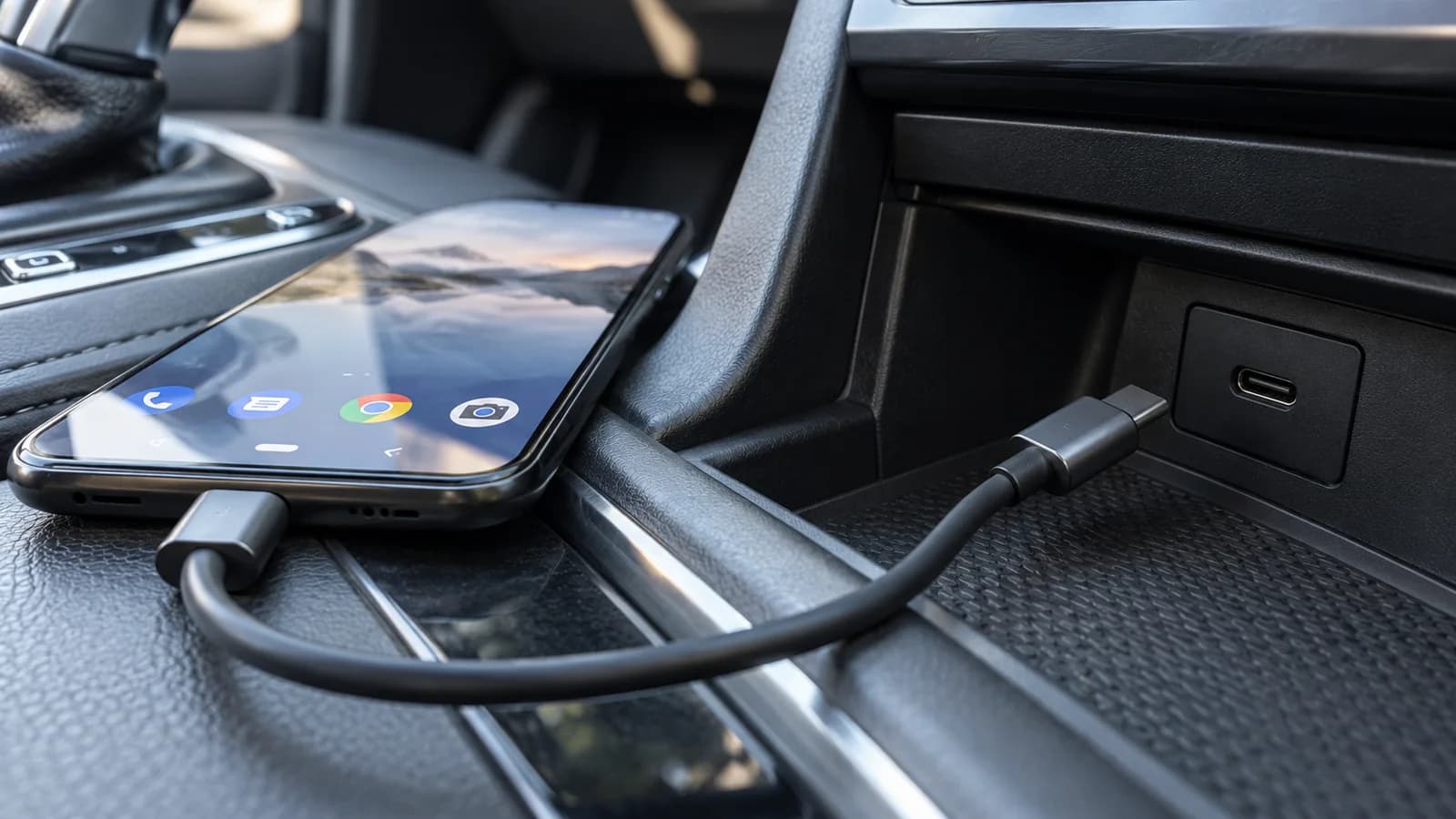
If CarPlay or Android Auto keeps disconnecting, first establish whether the whole interface disappears or only one app stops working. For USB, check the cable and correct port; for wireless, check settings and pairing. Repeat the same parked check after each change. The symptom alone does not prove an adapter fault or a need to replace the infotainment system.
Did it work before, and what actually disappears?
Record the starting configuration: phone, software version, car, infotainment system and connection method. If there is an additional adapter, note its exact model. Distinguish a first connection that never worked from a previously working setup that now disconnects. For the former, start by checking compatibility of the specific configuration.
If the CarPlay or Android Auto interface remains visible but one app cannot load content, do not yet treat that as a lost connection to the car. Check whether the menu and other apps respond. Also note whether the issue followed an update, a cable change or a new phone: the sequence helps troubleshooting but does not establish the cause.
Choose a check based on the symptom
This is a suggested observation sequence, not a diagnosis of a particular car or a breakdown-frequency table. Change settings while parked and follow the vehicle manual.
| Symptom | Next check | What to record |
|---|---|---|
| Phone charges but projection does not start | Check the data port and another cable | Port, cable model, on-screen message |
| The whole interface disappears over USB | Change only the cable, then check the port | Whether the same check restores the connection |
| Wireless does not reconnect after parking | Check settings and repeat pairing as instructed | Selected phone and reconnection method |
| One app fails but the menu responds | Compare with another app | What works, what does not and any error message |
| The head unit also restarts | Stop making changes and report it to the manufacturer or installer | Whether it also restarts without the phone |
USB: start with the cable and port
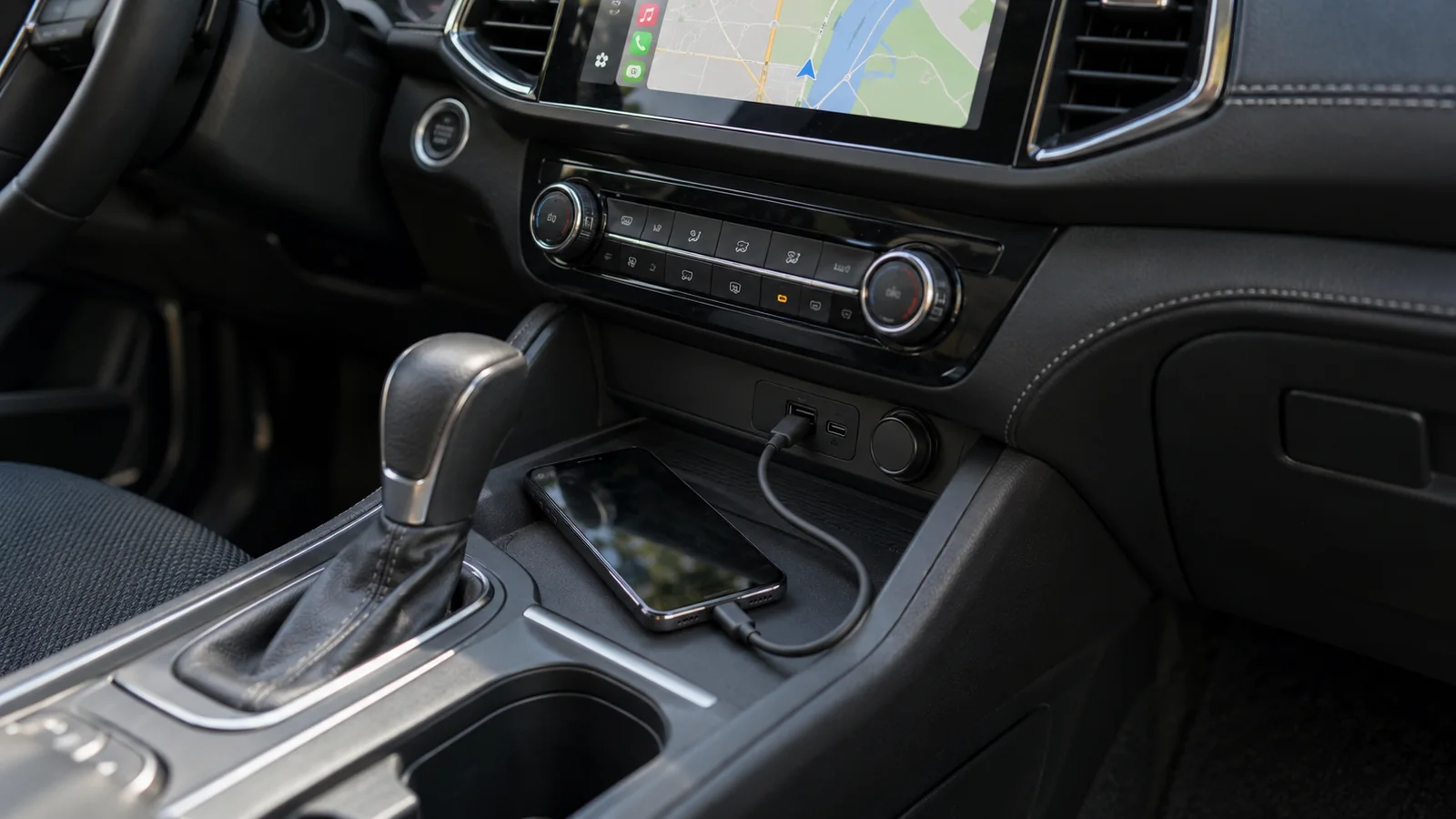
Use the manual to identify the port that supports the phone connection. Charging alone does not test data transfer. Connect directly; when trying another cable, keep the phone and settings unchanged.
For Android Auto, use a good-quality cable under one metre long, without USB hubs or extensions. For CarPlay, try another cable and another port if available; for problems involving USB-C/Lightning adapter combinations, use a direct USB connection. These are first checks, not proof that your cable is faulty.
If a socket is loose or visibly damaged, stop and arrange an inspection. Do not dismantle the head unit or wiring. A result of “works with another cable” narrows the next checks but does not automatically justify replacing the entire device.
CarPlay: the iPhone branch
Check that iOS is up to date, restart the iPhone and car, then try again. If CarPlay does not start, also check Siri and whether Screen Time restrictions block CarPlay. The menu paths may depend on the software version.
For wireless, check that Bluetooth and Wi-Fi are on and that Auto-Join is enabled for the CarPlay network. If those steps do not help, select the car under Settings → General → CarPlay, use Forget This Car and set up the connection again. This removes that car’s saved record, so be ready to pair and approve prompts again.
Android Auto: the Android branch
Check that Android Auto is enabled in the infotainment system and restart that system. For an aftermarket head unit, check its manufacturer’s website for software updates. Follow the instructions for the exact device when updating it.
For wireless, confirm that both the phone and car support that mode. During setup, leave Bluetooth, Wi-Fi and location services on; the first pairing uses Bluetooth. Do not switch Wi-Fi off simply because Bluetooth calls work.
If the problem is connecting to a second car, you can remove previously saved cars in Android Auto settings. This option removes all saved cars: do not make it the first response to every dropout. You will need to set those cars up again afterwards.
Using an adapter? Compare the underlying connection
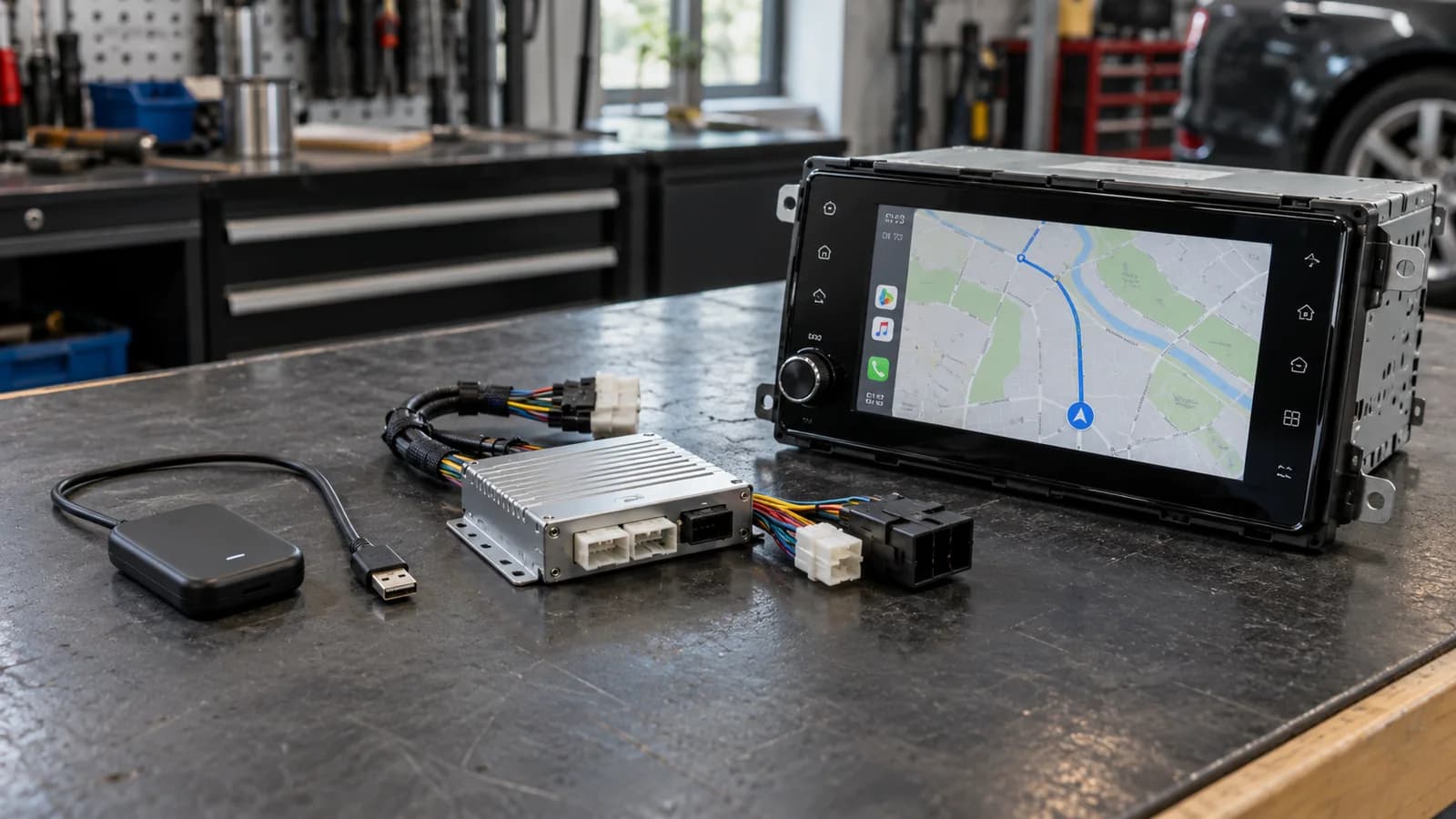
If the adapter converts working wired CarPlay or Android Auto into wireless, check the phone connected directly to the correct port when the kit’s instructions allow it. Keep the same phone and apps. Record the USB result separately from the adapter result.
Working USB with dropouts through the adapter identifies the branch to investigate next: adapter model, settings, compatibility and software. It does not yet identify a faulty component. Do not bypass a retrofit module fitted inside the car yourself; checking it requires the kit’s instructions and the installer.
Why did it start after an update?
Timing alone is not enough to blame an update. Record the exact version and change date, check manufacturer support notices for your device and repeat one controlled check. Do not factory-reset the phone or install random firmware on the strength of one symptom. If the problem persists, pass the comparison results to the manufacturer or installer.
Should you buy another adapter straight away?
No. Check the underlying connection, cable, settings and manufacturer procedure first. If another compatible phone is available, compare it in the same configuration with its owner’s permission. Record the difference, but do not treat one attempt as a complete diagnosis. Consider replacement after establishing compatibility and a cause these checks do not resolve.
What to prepare for an installer or support team
Prepare a short note rather than just “it disconnects”. Do not operate the phone while driving: record results after stopping, or let a passenger observe during a journey.
- Car make, model and year; infotainment name and software version; exact model of any additional adapter.
- Phone model, iOS or Android version, Android Auto version where applicable, and when the issue started.
- USB or wireless; port and cable used; whether this exact configuration worked before.
- What disappears: the whole interface, audio, one app or the head unit itself; the error message and how the connection returns.
- Each check: one change, the same scenario, the result. Keep observations separate from a suspected cause.
The next step in Warsaw
If the checks above do not help, share the configuration and results through the contact page. This helps establish whether the next step is phone support, infotainment support or an installation assessment.
How can a test log make results useful?
Record one change and its result per attempt. Conditional example: phone A with cable 1 loses the interface; phone A with cable 2 works; phone B with cable 1 is untested. This narrows cable checks but does not establish a complete diagnosis.
Do not mark an unperformed test as working. Do not publish identification numbers or private phone-screen information.
| Configuration | One change | Result and time of failure |
|---|---|---|
| Phone, software, radio, mode | Cable / port / setting | Whole projection or one app; when |
| The same starting point | Next single change | Works / fails / not tested |
Questions and answers
Does successful charging rule out a cable fault?
No. Power and data are different functions. Check a direct connection with an appropriate data cable and the port identified in the manual.
Does no internet mean CarPlay or Android Auto has disconnected?
Not always. If the projection menu and other apps respond, check the network, app and its data. Record exactly what stopped working.
When should you stop checking it yourself?
With a damaged or loose socket, overheating, multimedia restarts or a need to alter wiring. Avoid random firmware and dismantling retrofit modules; give the test record to a service specialist.
Prepare a useful connection fault report
Collect your car and phone details and check results. The service page has a contact form where you can describe the configuration.